

Adding a bank account to your LUCKYTOWNPLUS profile is an essential step to enable withdrawals and ensure your funds can be transferred securely. LUCKYTOWNPLUS supports all major Malaysian banks and uses multiple verification steps to protect your financial information. Follow our step-by-step guide below to add your bank account quickly and safely.
Step-by-Step Guide to Add Bank Account


Step 1: Access the "Me" Section
Log in to your LUCKYTOWNPLUS account. On the main page, locate and click the "Me" button in the bottom right corner. This opens your personal dashboard where you can manage your account settings and financial information.
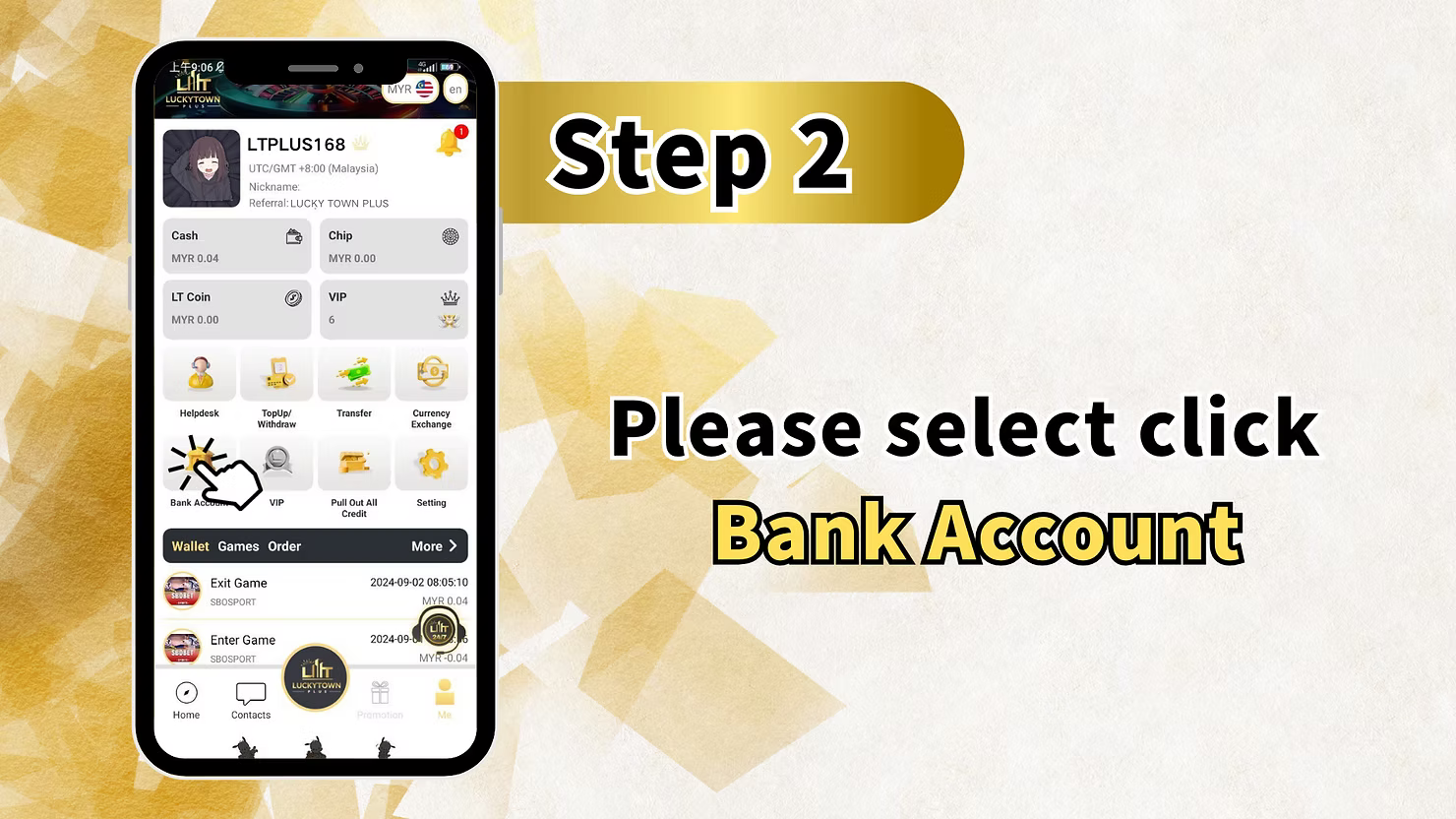
Step 2: Select "Bank Account"
From your "Me" dashboard, locate and click on "Bank Account". This will take you to the bank account management page where you can view existing accounts and add new ones.
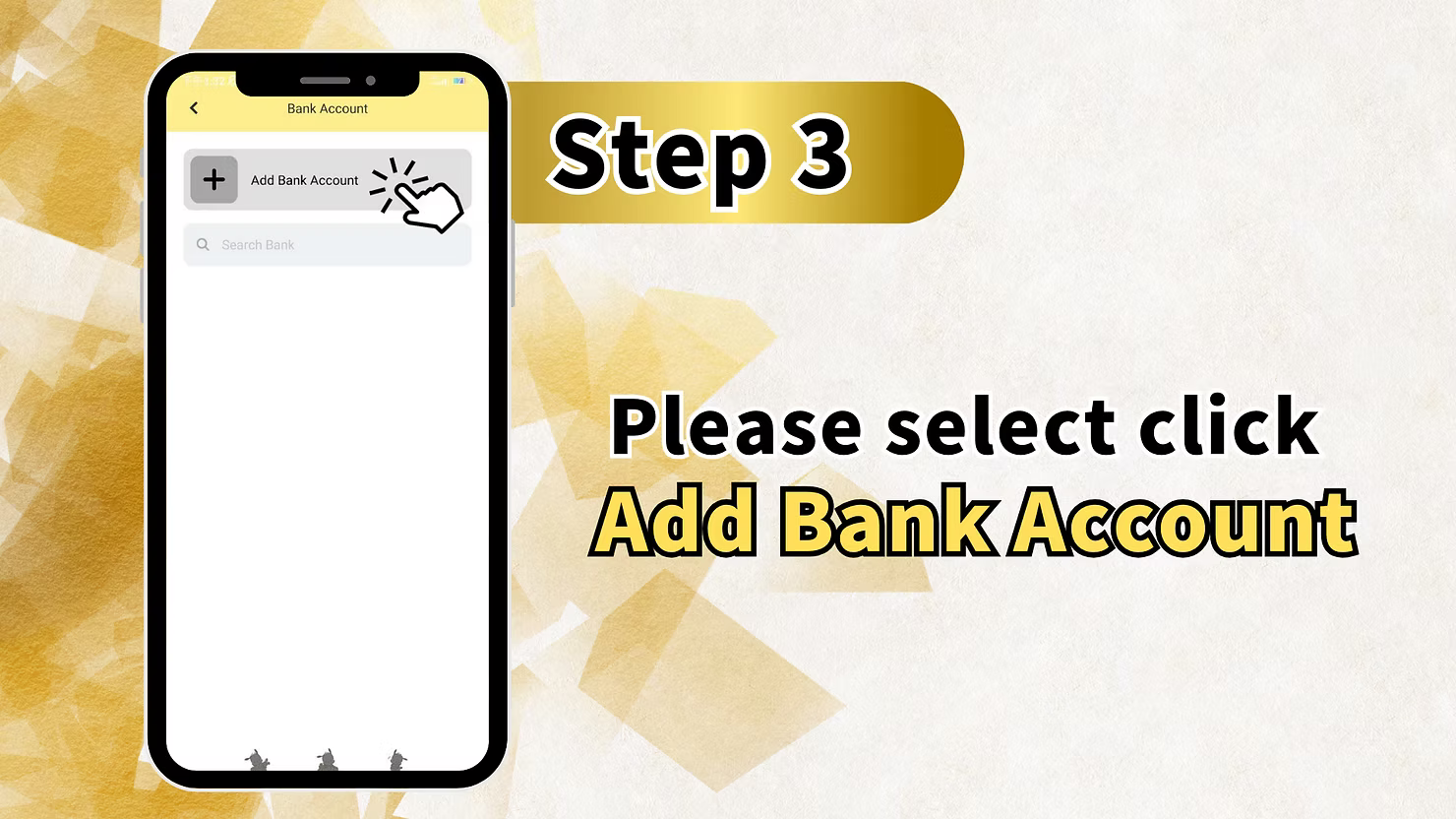
Step 3: Click "Add Bank Account"
On the Bank Account page, you will see an option to "Add Bank Account". Click this button to begin the account addition process.
Search Bank Option
The page may also include a "Search Bank" feature to help you quickly find your bank from the list. You can use this if you have many banks to choose from.
Step 4: Fill in Bank Account Details
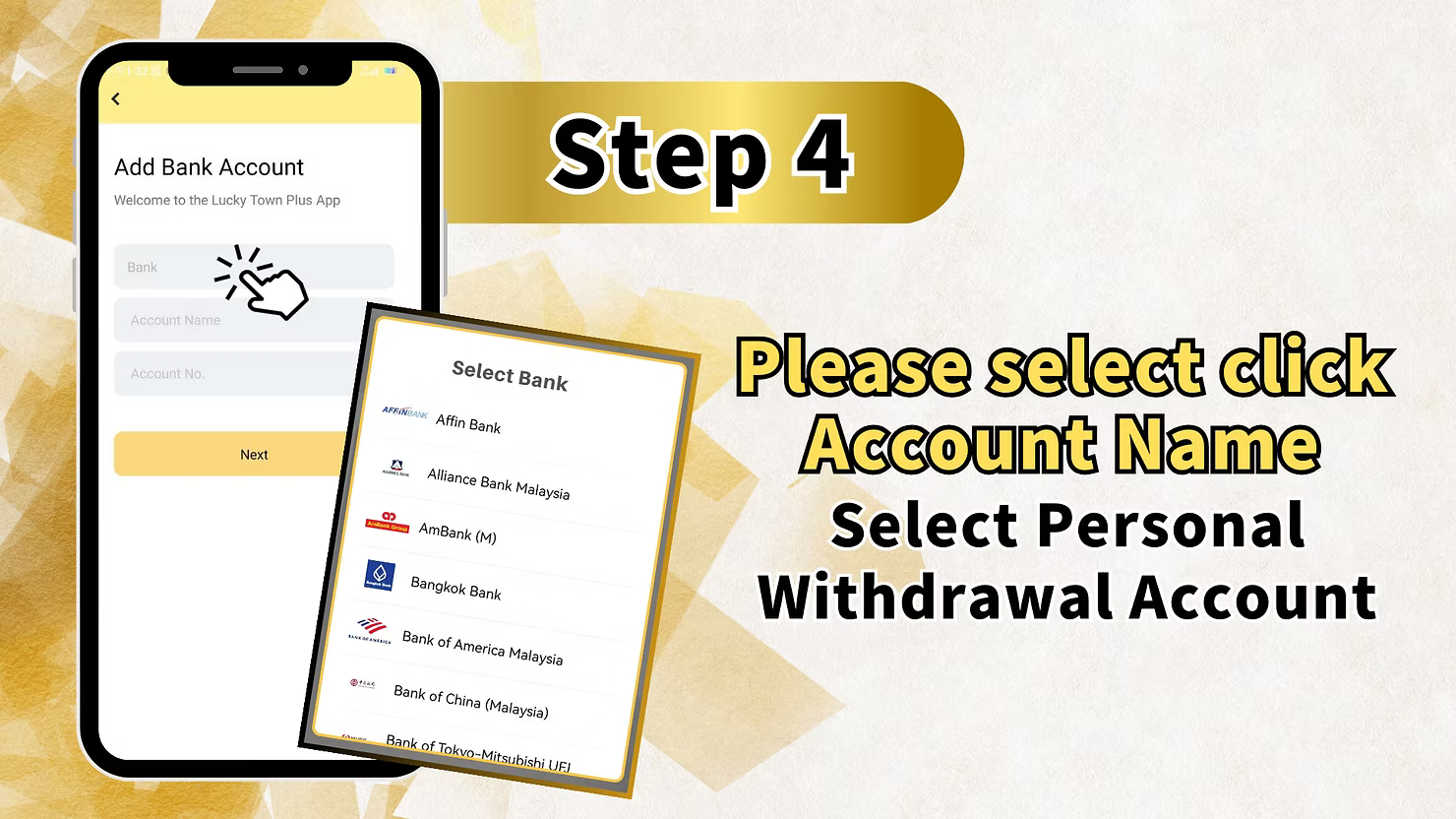
You will now see the "Add Bank Account"form with the following fields:
Welcome Message
The top of the form displays: "Welcome to the Lucky Town Plus App" to confirm you're in the right place.
Select Bank
Click on the "Bank" field to choose your bank from the dropdown list. LUCKYTOWNPLUS supports a wide range of Malaysian banks including:
- Affin Bank
- Alliance Bank Malaysia
- AmBank (M)
- Bangkok Bank
- Bank of America Malaysia
- Bank of China (Malaysia)
- Bank of Tokyo-Mitsubishi UFJ
- And many other Malaysian financial institutions
Enter Account Name
In the "Account Name" field, enter the full name of the account holder. This must match exactly with your registered LUCKYTOWNPLUS account name and your identification documents.
Enter Account Number
In the "Account No." field, enter your complete bank account number. Double-check for accuracy as incorrect numbers will cause withdrawal failures.
Select Personal Withdrawal Account
"Please select click Account Name Select Personal Withdrawal Account" – Ensure you select the correct account type (Personal Withdrawal Account) as this will be used for all future withdrawals.
Complete Step 4
After filling in all fields, click "Next" to proceed to the verification step.
Step 5: Review and Confirm Account Details
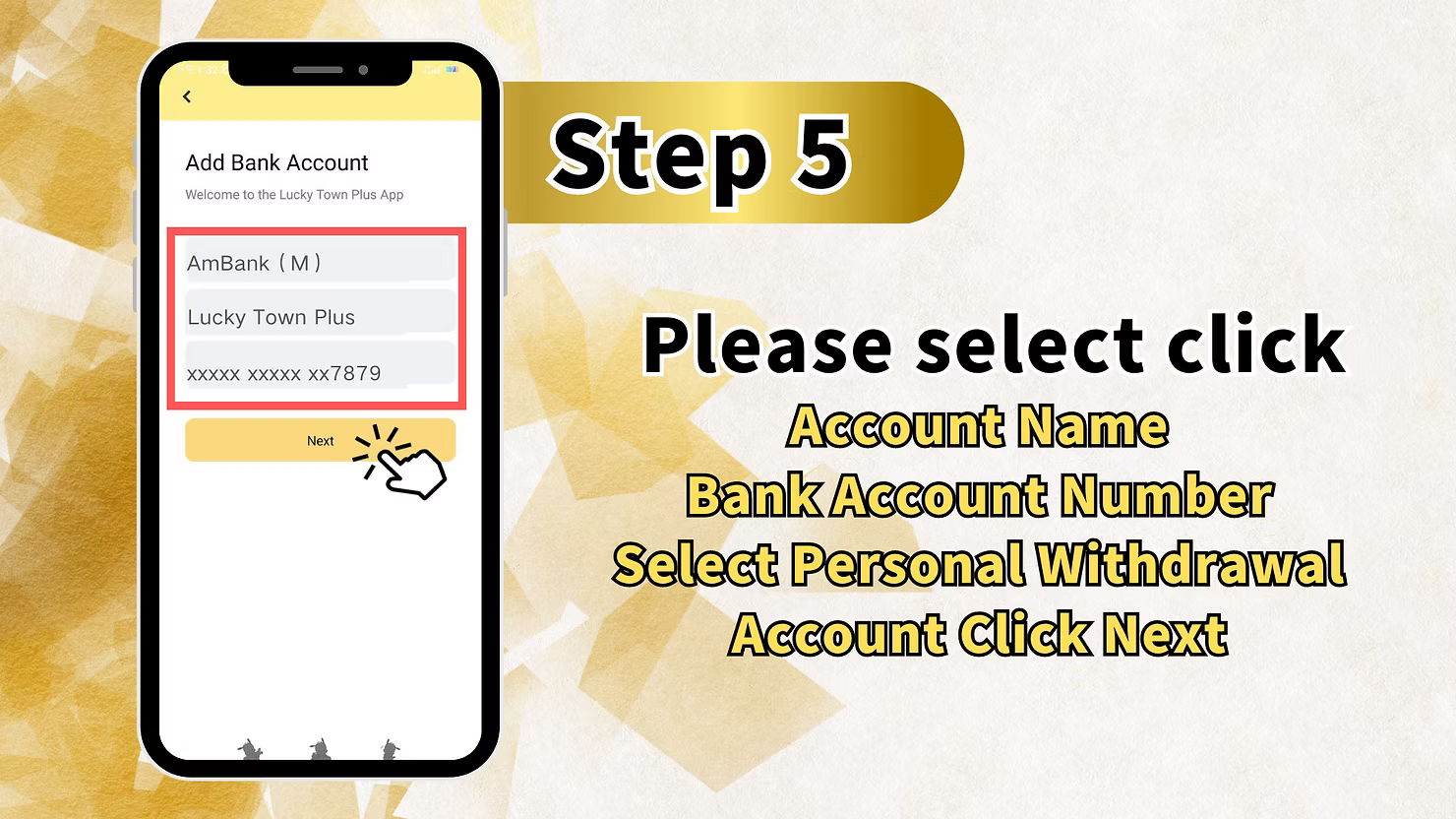
You will now see a summary screen displaying the bank account information you entered:
Account Summary Display
The screen shows:
- Bank Name: (e.g., AmBank (M))
- Account Name: (e.g., Lucky Town Plus)
- Account Number: (masked format, e.g., xxxxxxxxxxxxxx7879)
Final Check
"Please select click Account Name Bank Account Number Select Personal Withdrawal Account Click Next" – Review all information carefully. If correct, click "Next" to proceed to PIN verification.
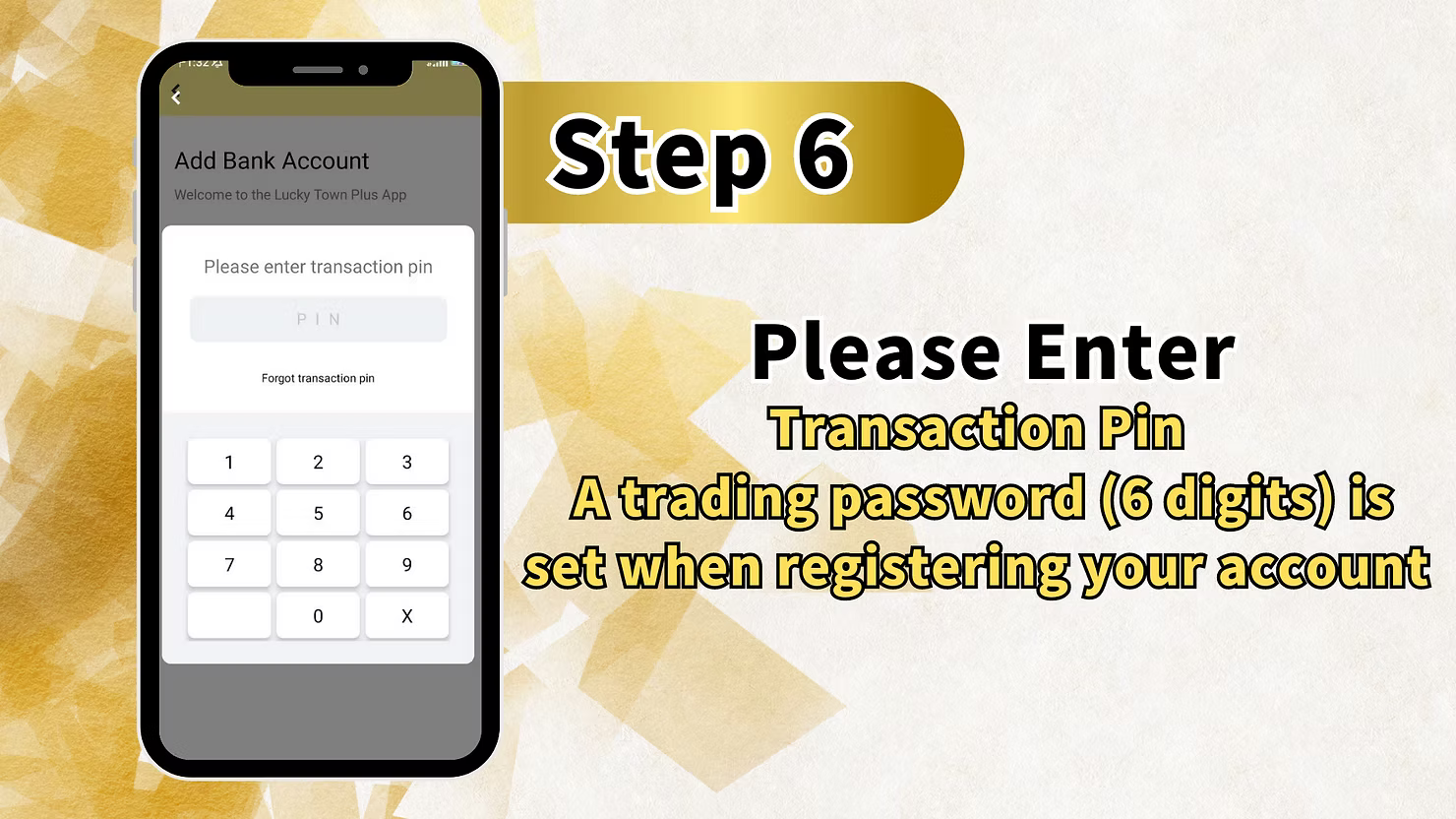
Step 6: Enter Transaction PIN
To verify your identity and authorize the addition of this bank account, you must enter your 6-digit transaction PIN.
Transaction PIN Requirements
"Please Enter Transaction Pin A trading password (6 digits) is set when registering your account." Your transaction PIN is a 6-digit number you created during account registration. This adds an extra layer of security to all financial actions.
PIN Entry Screen
The screen displays a numeric keypad for you to enter your PIN. You will see:
- PIN: Field where your entered digits appear (masked)
- Forgot transaction pin – Link to click if you've forgotten your PIN
- Numeric keypad with digits 0-9 and an X for corrections
Complete Step 6
Enter your 6-digit transaction PIN using the keypad. After entering all digits, the system will verify your PIN and process the bank account addition.
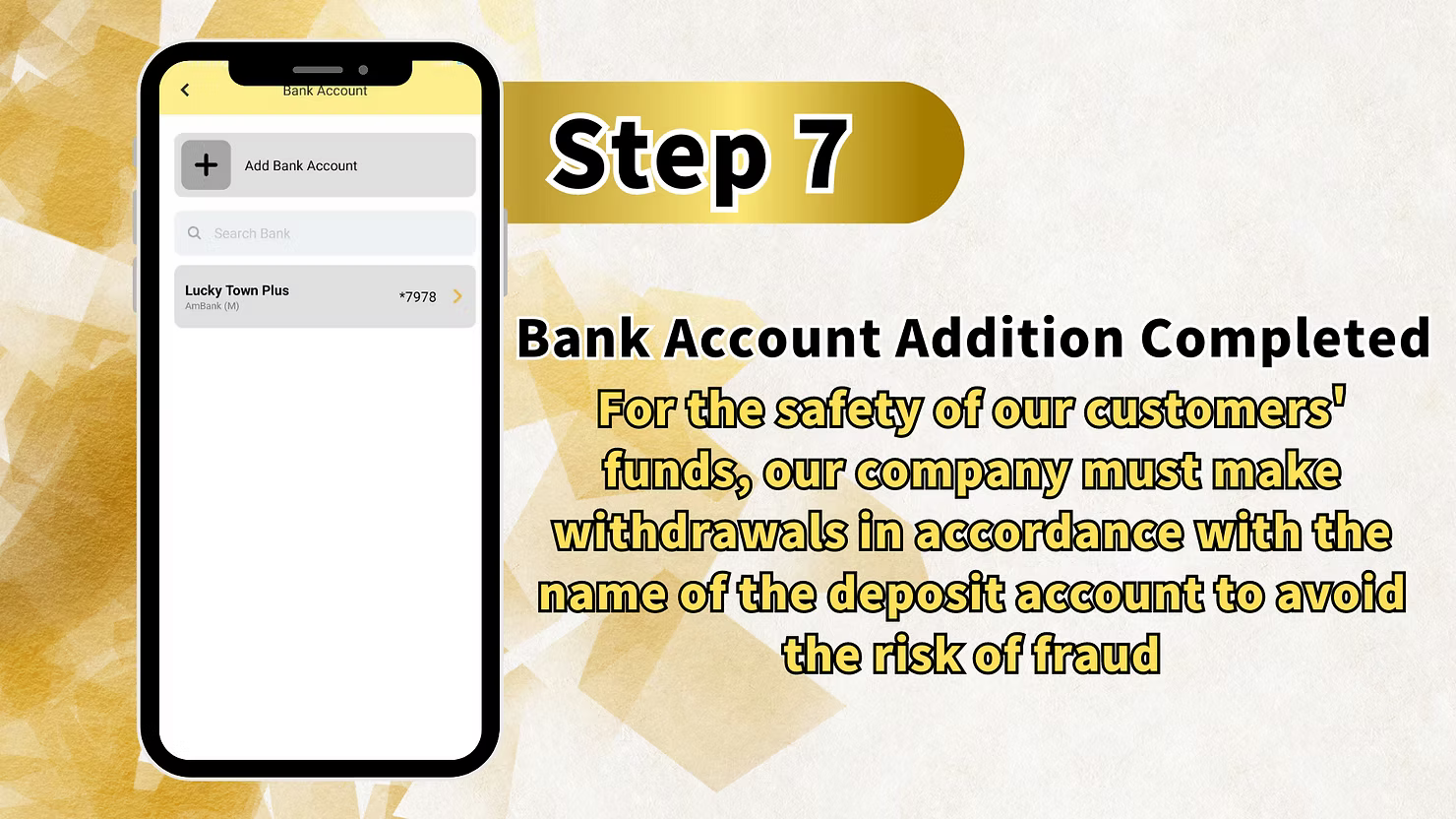
Bank Account Addition Completed
Success Confirmation
After successful PIN verification, you will see a confirmation screen:
Completion Message
"Bank Account Addition Completed" – This confirms your bank account has been successfully added to your LUCKYTOWNPLUS profile.
Important Security Notice
"For the safety of our customers' funds, our company must make withdrawals in accordance with the name of the deposit account to avoid the risk of fraud." – This reminder emphasizes that all withdrawals must go to accounts with matching names to prevent fraud.
Important Notes for Adding Bank Accounts
Name Matching is Essential
The account name you enter must match your LUCKYTOWNPLUS registered name exactly. Any discrepancy will cause withdrawal failures and may result in account restrictions. Complete Real Name Verification before adding a bank account.
Supported Banks
LUCKYTOWNPLUS supports all major Malaysian banks including Affin Bank, Alliance Bank, AmBank, Bangkok Bank, Bank of America, Bank of China, Bank of Tokyo-Mitsubishi UFJ, and many others. If your bank is not listed, contact customer service for assistance.
Transaction PIN Security
Your 6-digit transaction PIN is required for adding bank accounts and making withdrawals. Never share this PIN with anyone. LUCKYTOWNPLUS will never ask for your PIN via phone, email, or message.
Multiple Bank Accounts
You can add multiple bank accounts to your LUCKYTOWNPLUS profile. When making withdrawals, you can select which registered account to use.
Frequently Asked Questions About Adding Bank Accounts
Why Do I Need to Add a Bank Account?
Adding a bank account is required to process withdrawals. Without a registered bank account matching your verified name, you cannot withdraw funds from LUCKYTOWNPLUS.
How Many Bank Accounts Can I Add?
There is no stated limit to the number of bank accounts you can add. You can register multiple accounts for withdrawal flexibility.
What If I Forgot My Transaction PIN?
Click the "Forgot transaction pin" link on the PIN entry screen. Follow the verification process to reset your PIN. Contact customer service if you need additional assistance.
Can I Add a Joint Bank Account?
Joint accounts may be accepted as long as your name appears on the account and matches your LUCKYTOWNPLUS registration. Contact customer service for specific guidance.
What If My Bank Isn't Listed?
If your bank is not in the dropdown list, contact LUCKYTOWNPLUS customer service. They can advise whether your bank can be added or suggest alternatives.
How Do I Know My Account Was Added Successfully?
You will see a "Bank Account Addition Completed" confirmation message. The account will then appear in your Bank Account list for future withdrawals.
Is It Safe to Add My Bank Account?
Yes. LUCKYTOWNPLUS uses encryption and security protocols to protect your financial information. Your full account number is masked in displays, and transaction PIN verification ensures only you can add accounts.
Why Add a Bank Account on LUCKYTOWNPLUS?
Adding a bank account is your gateway to accessing your winnings on LUCKYTOWNPLUS. With support for all major Malaysian banks, clear step-by-step guidance, and robust security including transaction PIN verification, you can feel confident that your financial information is protected. LUCKYTOWNPLUS is committed to providing a secure, transparent platform where you can play with peace of mind and withdraw your funds whenever you choose.
Add Your Bank Account on LUCKYTOWNPLUS Today
Ready to set up withdrawals? Follow our 6-step guide to add your bank account securely. Select your bank, enter your details, verify with transaction PIN, and start withdrawing. Log in now to add your account – or sign up in minutes using your Malaysia phone number if you're not yet a member.
Add Bank Account Now